How to sign into Libby with QLL!
Follow the step by step guide below to see how to sign into Libby with your QLL card.
Follow the step by step guide below to see how to sign into Libby with your QLL card.
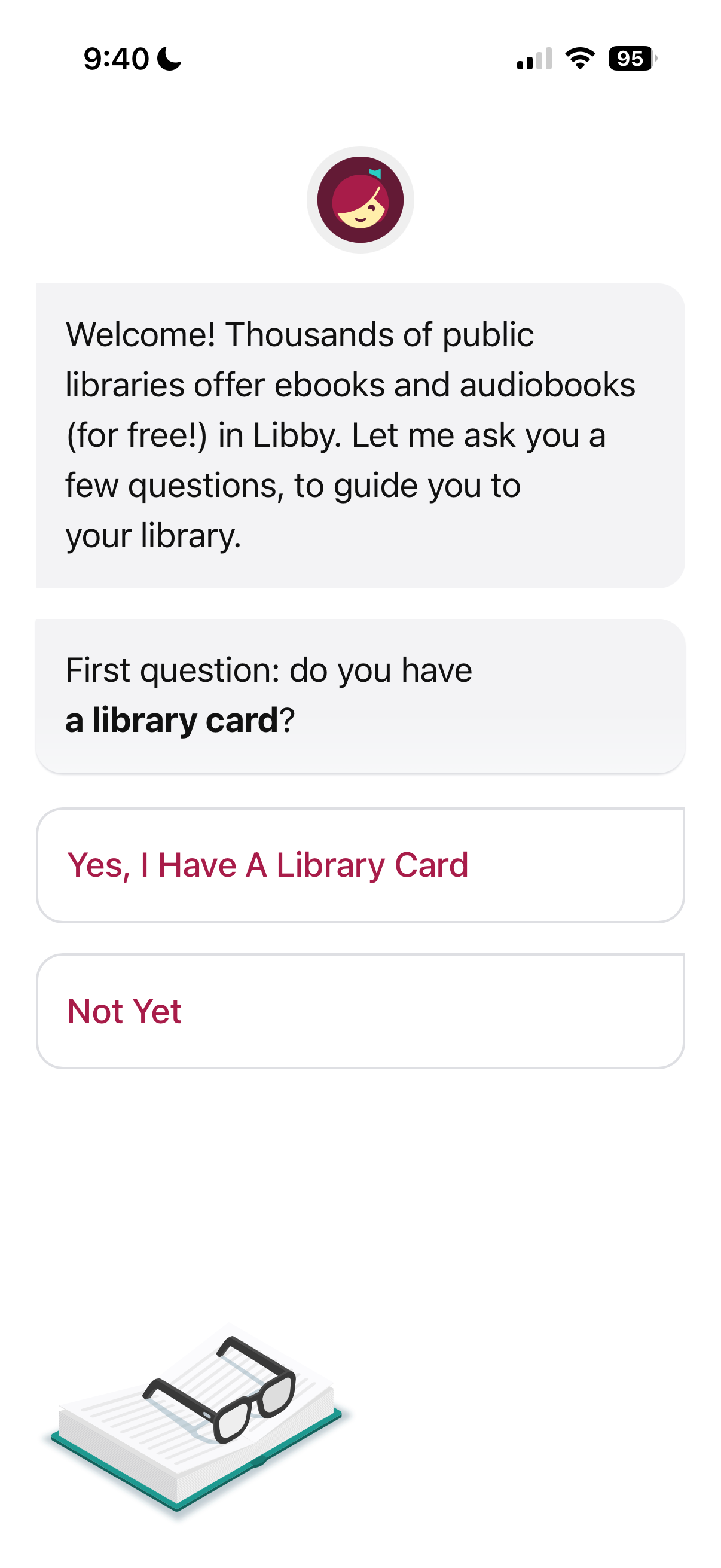
Open the Libby app (or use libbyapp.com) and select “Yes, I have a library card.”
ID: Screenshot of Libby app with Libby logo and text that reads, “Welcome! Thousands of public libraries offer ebooks and audiobooks (for free!) in Libby. Let me ask you a few questions, to guide you to your library. First question: do you have a library card?” With two button options: “Yes, I Have A Library Card” and “Not Yet”
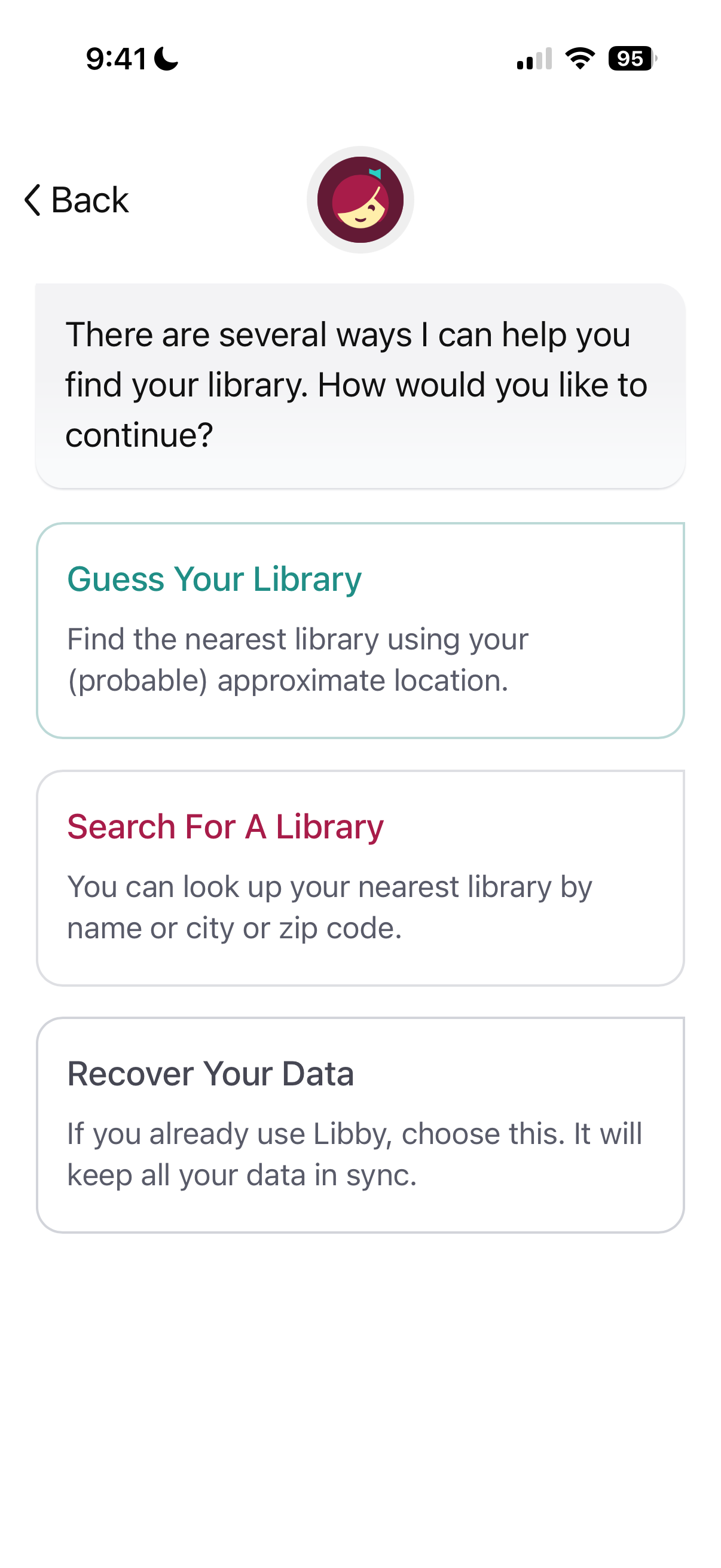
Select “Search for a Library.”
ID: Screenshot of Libby app with Libby logo and text that reads: “There are several ways I can help you find your library. How would you like to continue?” With three button options: “Guess Your Library”, “Search For A Library”, “Recover Your Data”
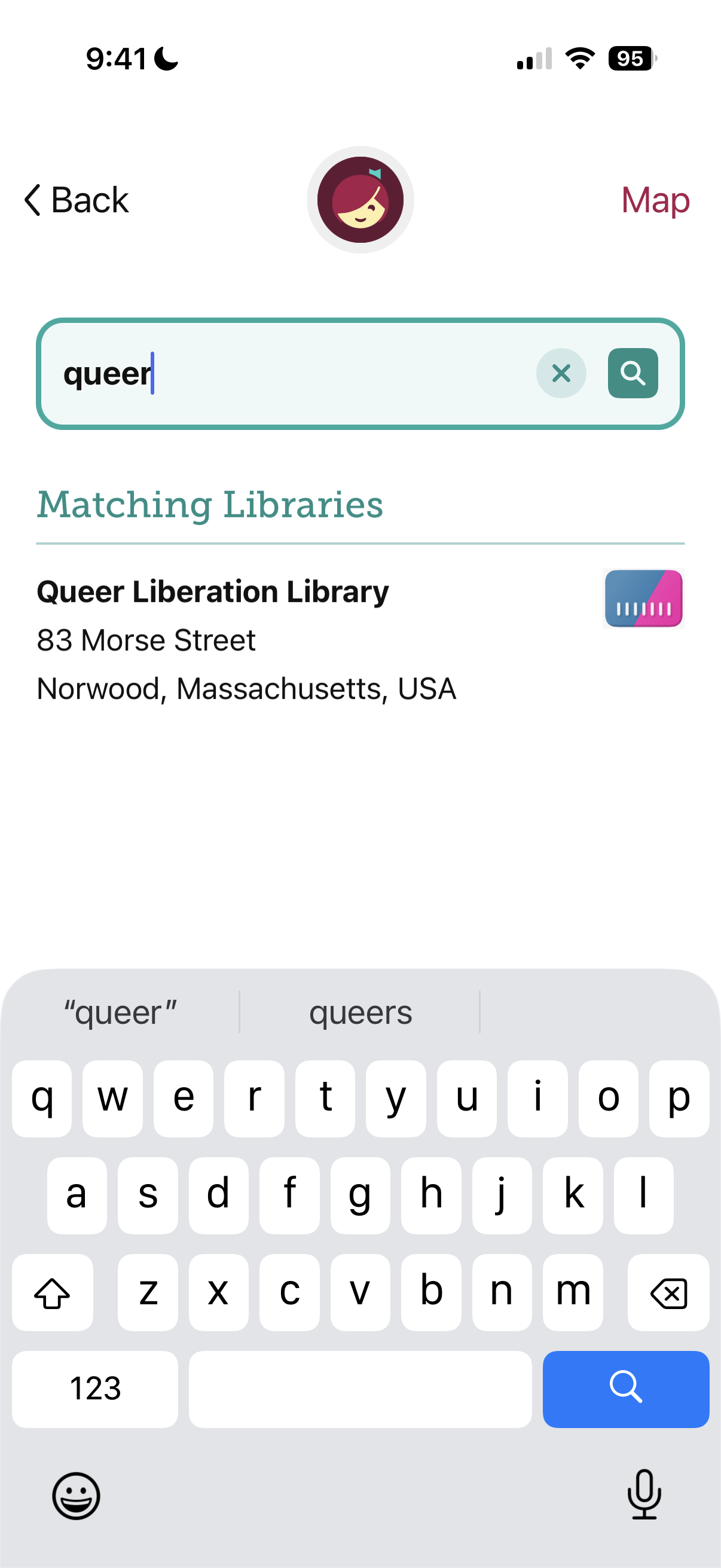
Search for “Queer Liberation Library” and select QLL.
ID: Screenshot of Libby app with Libby logo and a search box with “queer” entered on top of the text reading “ Matching Libraries” and “Queer Liberation Library” with a blue and pink card and 83 Morse Street, Norwood, Massachusetts, USA listed underneath
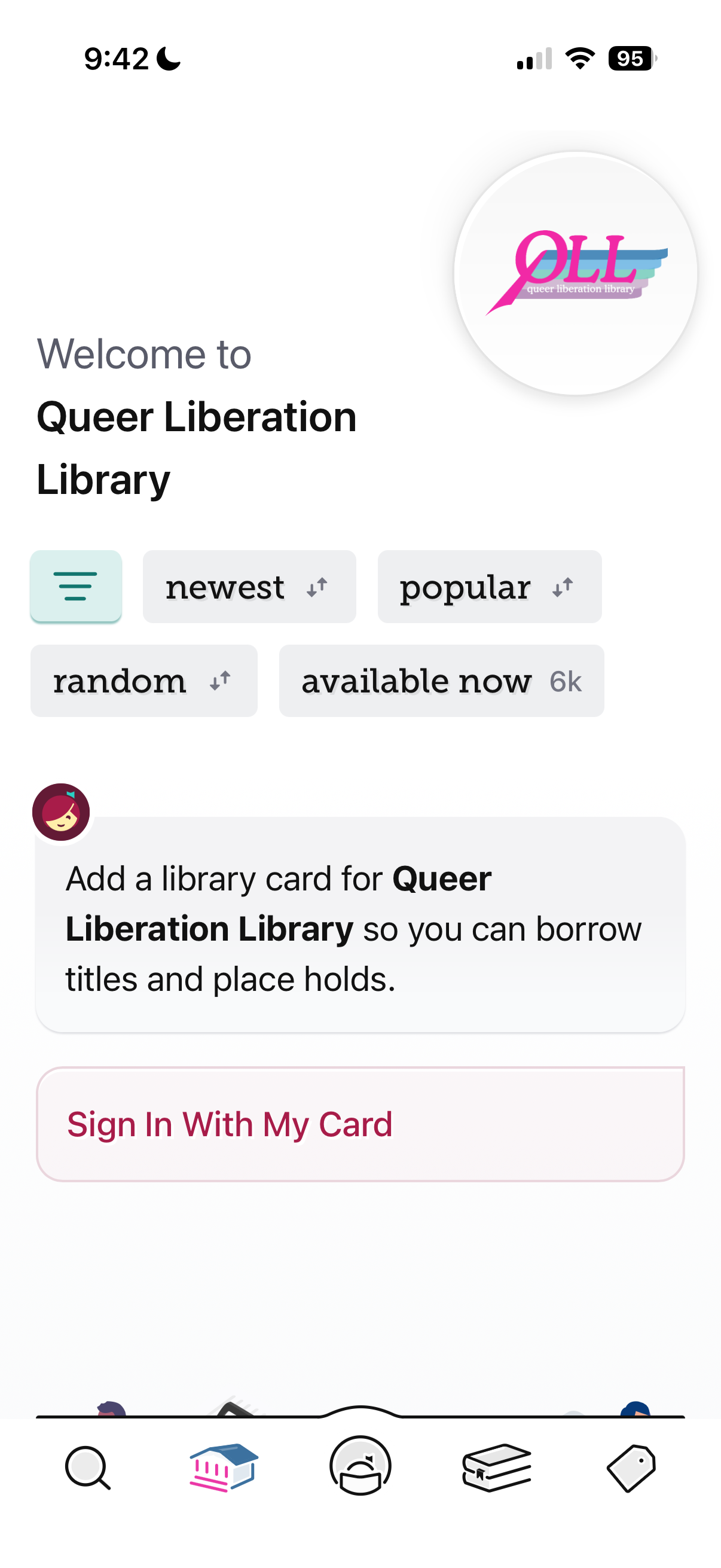
Hit “Sign in With My Card.”
ID: Screenshot of Libby app with QLL logo and text that reads, “Welcome to Queer Liberation Library” and text that reads, “ Add a library card for Queer Liberation Library so you can borrow titles and place holds.” And a button beneath that says, “Sign In With My Card”
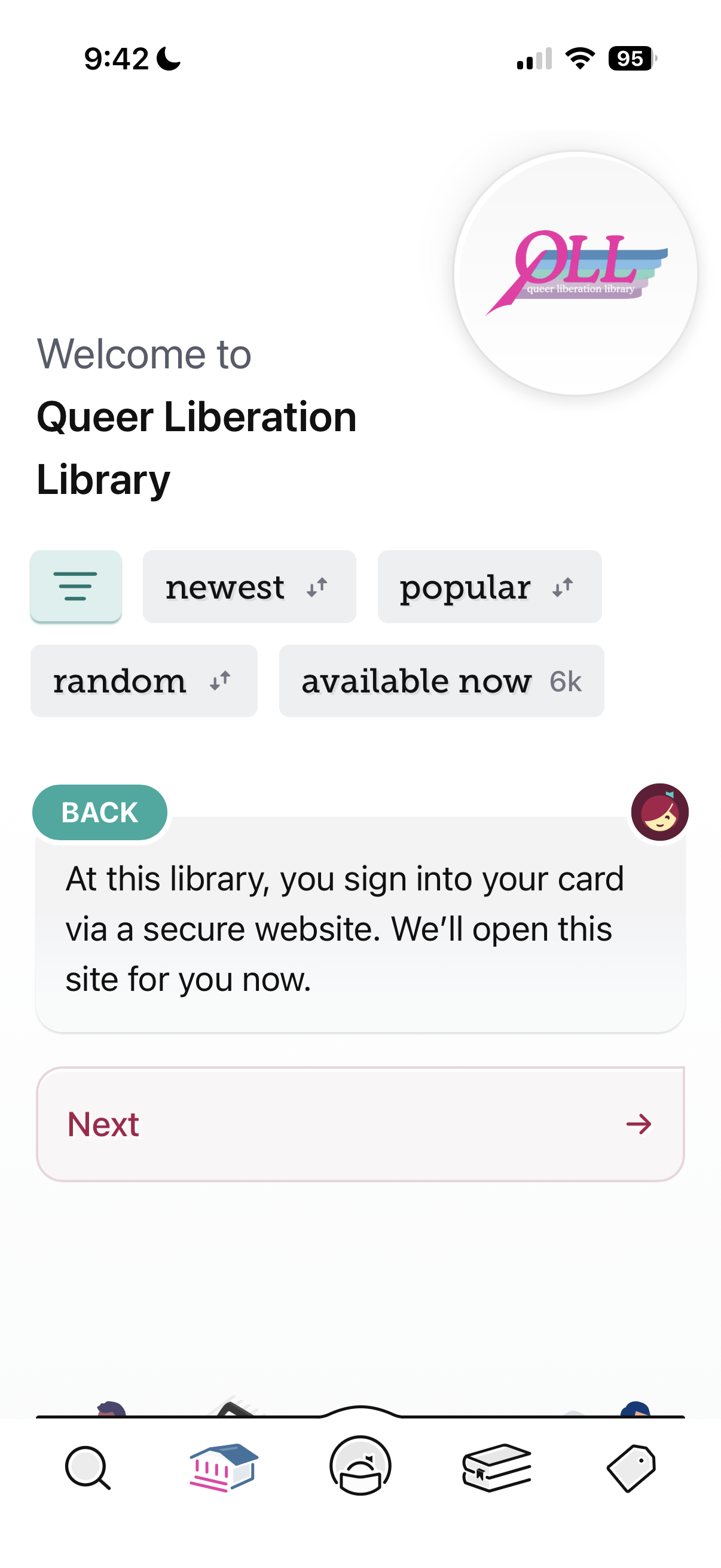
Hit “Next.”
ID: Screenshot of Libby app with QLL logo and text reading, “Welcome to Queer Liberation Library” on top of a message that reads, “Back: At this library, you sign into your card via a secure website. We’ll open this site for you now.” On top of a button that says, “Next” with an arrow pointing to the right.
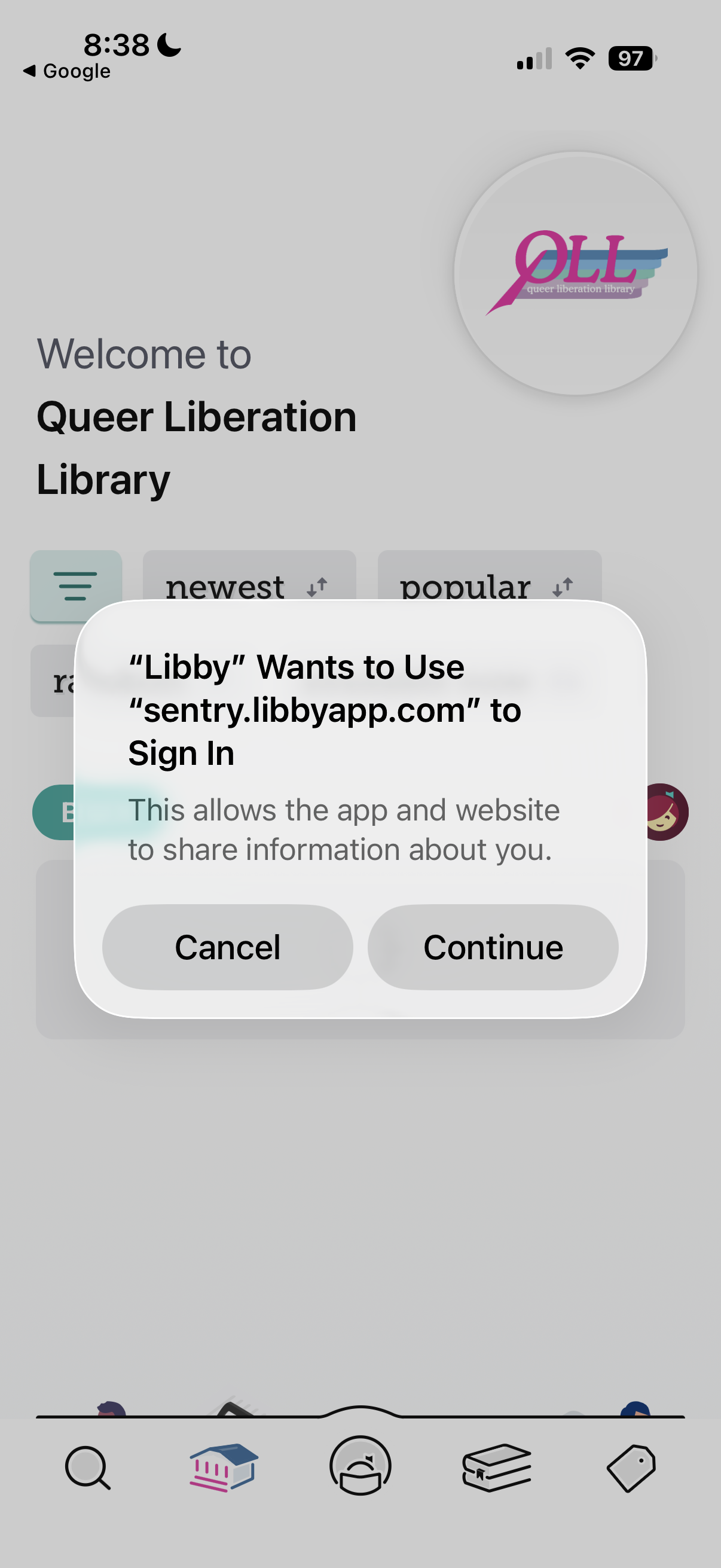
Accept the pop up notice to sign in by hitting “Continue.”
ID: Screenshot of Libby app with QLL logo and a pop up that says: “‘Libby’ Wants to Use ‘sentry.libbyapp.com’ to Sign in. This allows the app and website to share information about you.” above buttons that say, “Cancel” and “Continue”
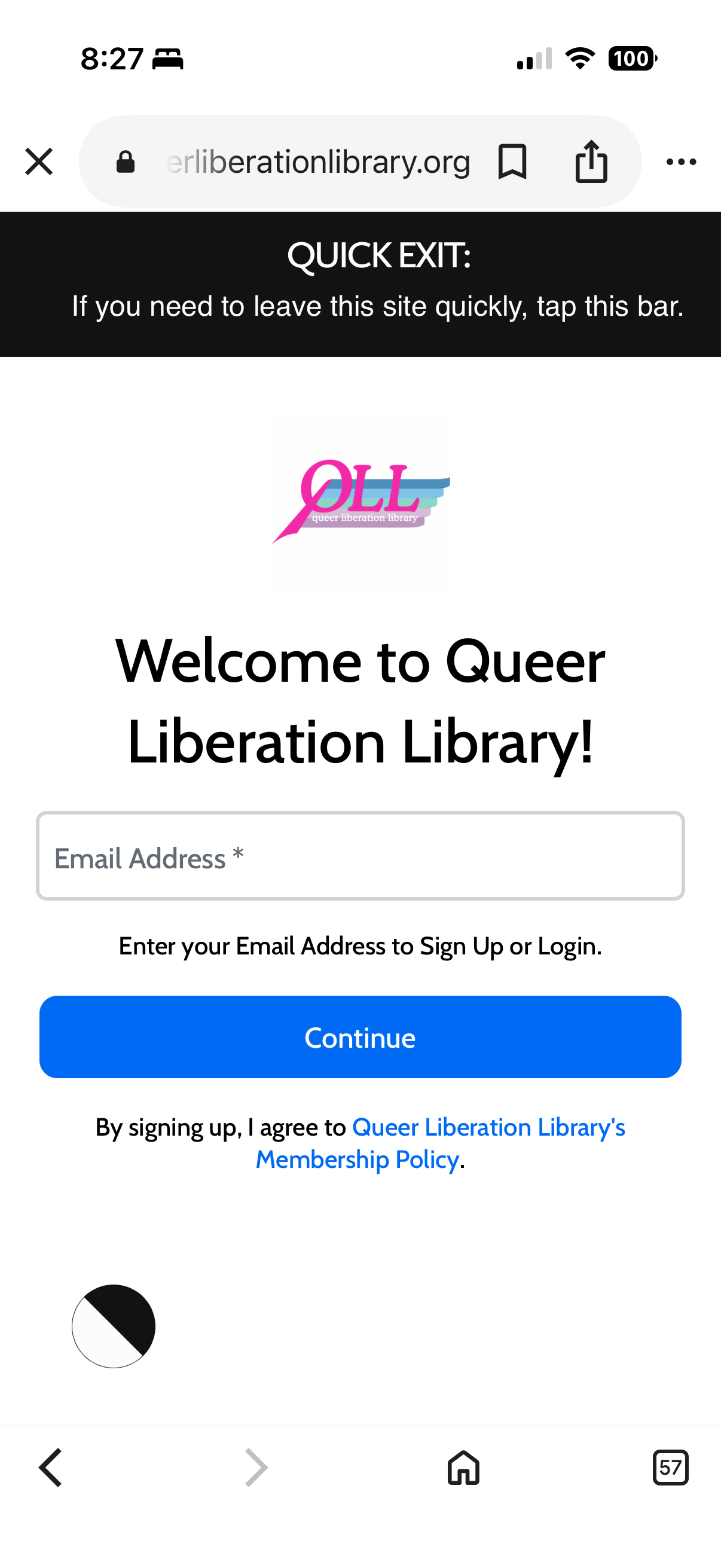
Enter the email address you use for your membership and hit “Continue.”
ID: Screenshot of Queer Liberation Library website with QLL logo and text reading: “Welcome to Queer Liberation Library!” with a text box to enter “Email Address*” and text reading, “Enter your Email Address to Sign Up of Login.” above blue button that reads, “Continue” and text underneath reading, “By signing up, I agree to Queer Liberation Library’s Membership Policy.
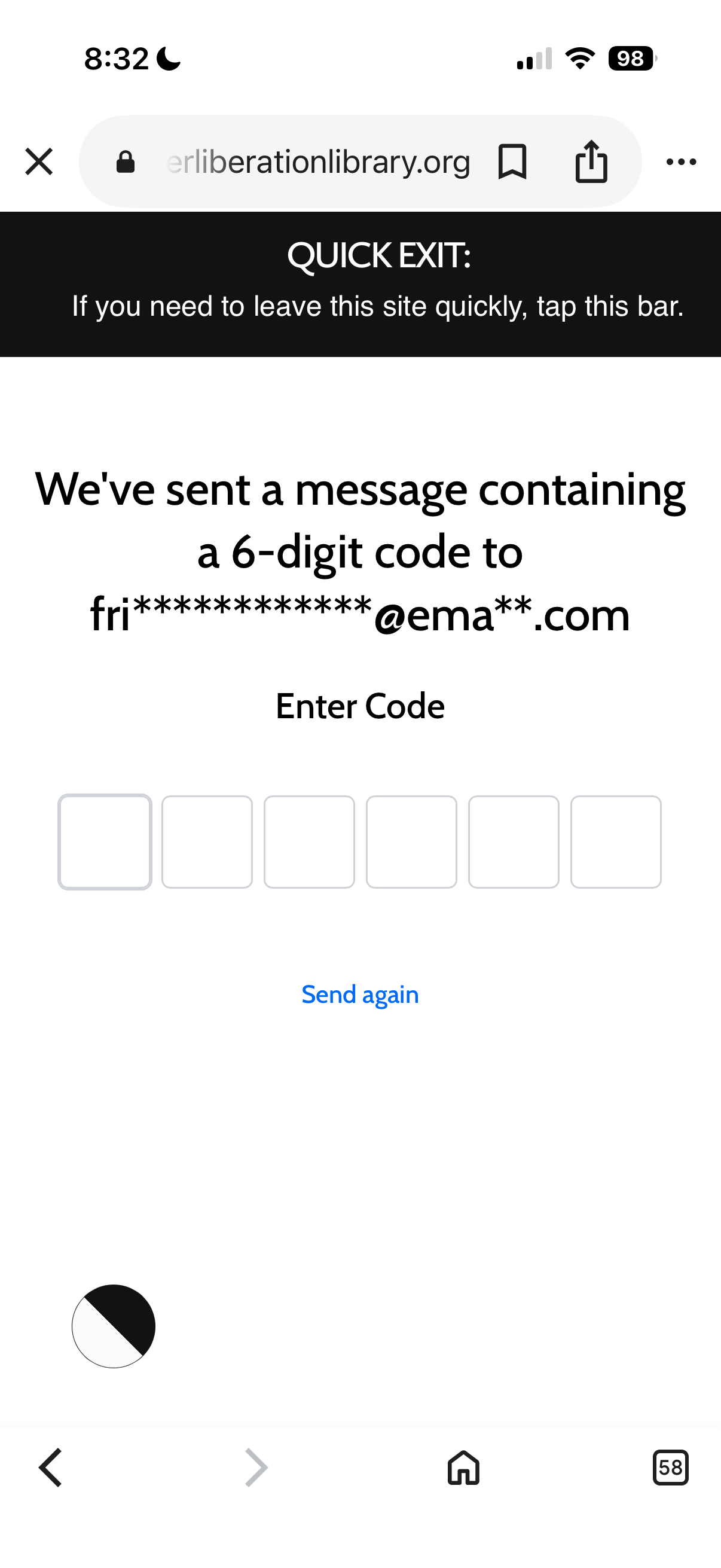
You will get a 6 digit code sent to your inbox; enter that code in the same window you put your email address in.
ID: Screenshot of Queer Liberation Library website with text that reads, “ We've sent a message containing a 6-digit code to “fr**************@ema**.com” and “Enter Code” with 6 empty boxes above text that reads “Send again” in blue
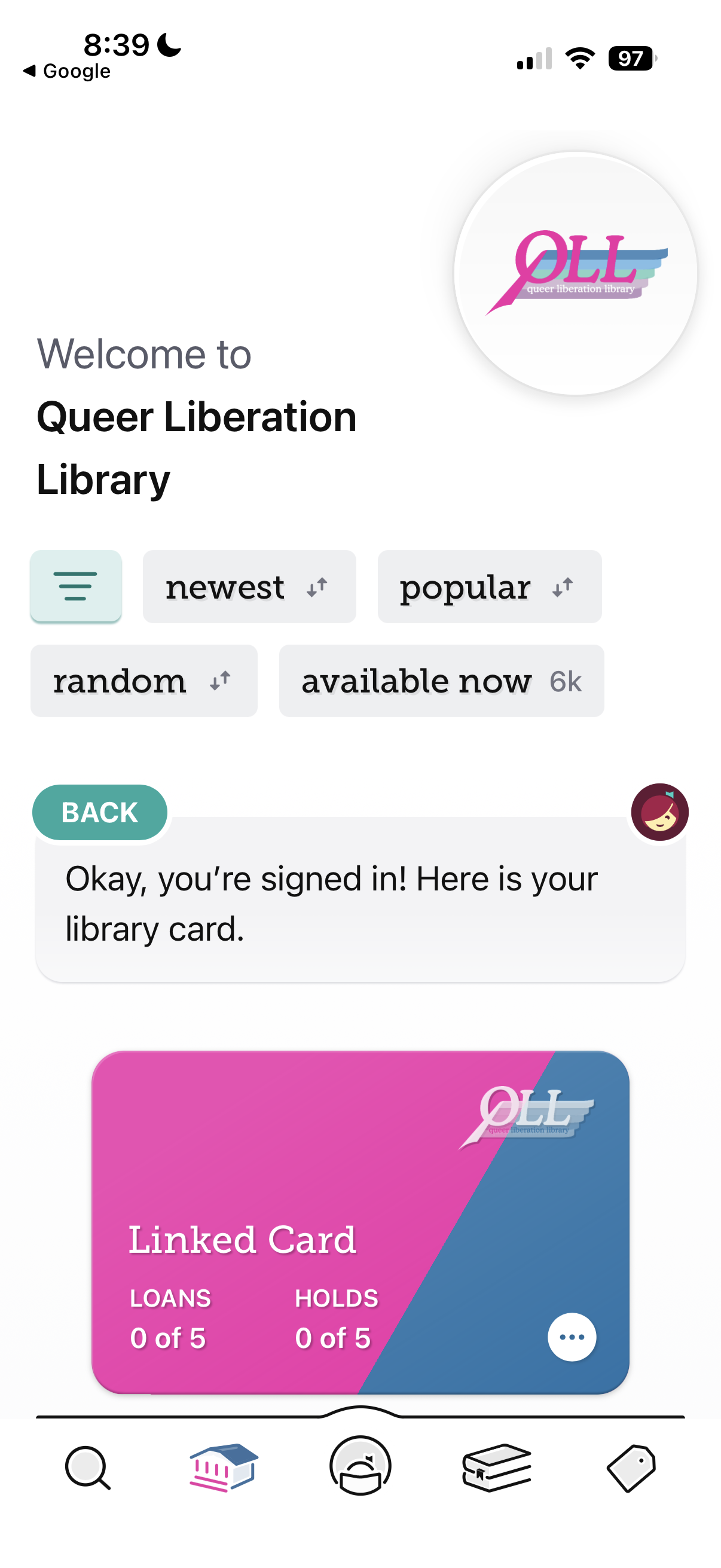
That’s it! You’ve now got your QLL card registered with your Libby app. Happy Queer Reading!
ID: Screenshot of Libby app with QLL logo and text reading, “Welcome to Queer Liberation Library” and “Okay, you’re signed in! Here is your library card.” Above a pink and blue QLL library card that says, “Linked Card” and “Loans 0 of 5” and “Holds 0 of 5”